


Streaming (VOD)TV
Loved and used by thousands of amazing brands






What Can You Do?
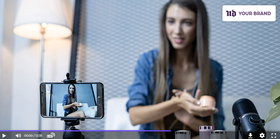
- Your own branding and no competition
- Reach your audience anywhere (even in corporate networks and Mainland China)
- Calls to action and subscription forms

- Organize and publish your customer support videos
- Let agents record and auto-upload tutorials with ScreenRec
- Our Deep Analytics data shows you how effective your videos are
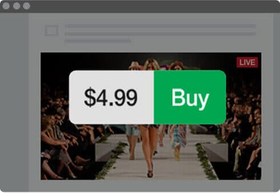
- Sell or rent individual videos on your TV channel
- Set up pay-per-view streaming
- Charge monthly or yearly subscriptions
- Stream your TV to multiple sites at once (e.g. Facebook, YouTube, Twitter)
- Keep your copyrights and protect your content from pirates
- Create premium (paid) video channels
- Add calls to action and email opt-in forms to your videos
- Attach files to your videos
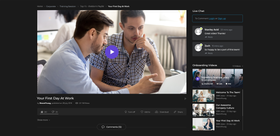
- Live stream internal company events such as workshops
- Quickly record and auto-upload employee training videos with ScreenRec
- Protect your videos with advanced encryption and passwords
Bring Your Brand Forward
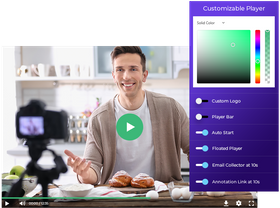
How It Works
Add content
Upload media files from your local drive or from remote sites such as YouTube, Vimeo, and your own web server. You can add live streams, too!
1
Organize
Organize your media with playlists and tags to create a better viewer experience.
2
Publish
Embed your TV channel on your website, share on social media or stream it live to multiple sites.
3
Manage
Change your TV channel settings directly from our admin panel and they will be applied immediately. No need to update code.
4
Turn Viewers Into Fans
- Require email to watch your content
- Set up custom form fields and colors
- Display your form at any point in the video
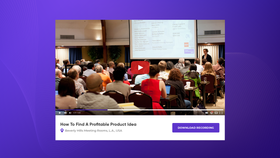
- From cheat sheets for educational videos to photos from live concerts, you can enhance your videos with any type of additional content you want
- You can attach your files in various formats, including PDFs, text docs, images and presentations
- Add custom calls to action at any point in the video
- Insert links, annotations, polls, quizzes, and more
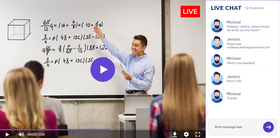
- Start public and private conversations in the live chat
Keep Your Intellectual Property Safe
Protect Copyrights
You content will never be reshared or sold without your knowledge.
No Screen Recording
Place Dynamic Watermarks to prevent viewers from recording your content.
No Downloads
Prevent unwanted downloads with the 128-bit AES video encryption.
Restrict Access
Restrict your TV channel to specific locations or networks.
FREQUENTLY ASKED QUESTIONS
Yes, just create a channel playlist and you can add any type of media you wish, both live and on-demand.
Yes, absolutely! With StreamingVideoProvider, you can build both paid and free online TV channels. In fact, you have even more control: You can publish free and paid items on the same channel.
For example, imagine you have a 24/7 sports channel that’s broadcasting all FIFA World Cup matches together with some documentary movies about the football game. You can put each live match behind a paywall and make everything else free to watch.
Yes, you can create live TV channels and YouTube-like channels (e.g. for employee training, product tours, customer education). We offer complete content protection and give you full control over privacy. For example, some channels can be restricted to your corporate network while others can be public and accessible from anywhere in the world.
Yes, you can. You can broadcast live or schedule videos to be played out. If you don’t have enough content for a 24/7 channel, don’t worry! You can make your channel playlist loop automatically.
Yes, your audience will be able to watch on mobile.
Yes, you can. You can, in fact, if you want, you can create an online radio with StreamingVideoProvider.